Switch between dashboards
The sidebar is the only switching surface — there's no top toolbar dropdown after runtime-shell-trim.
Goal
Switch from the active dashboard to a different one.
Steps
1. Open the sidebar
Click the hamburger button (top-right). The sidebar slides in from the left:
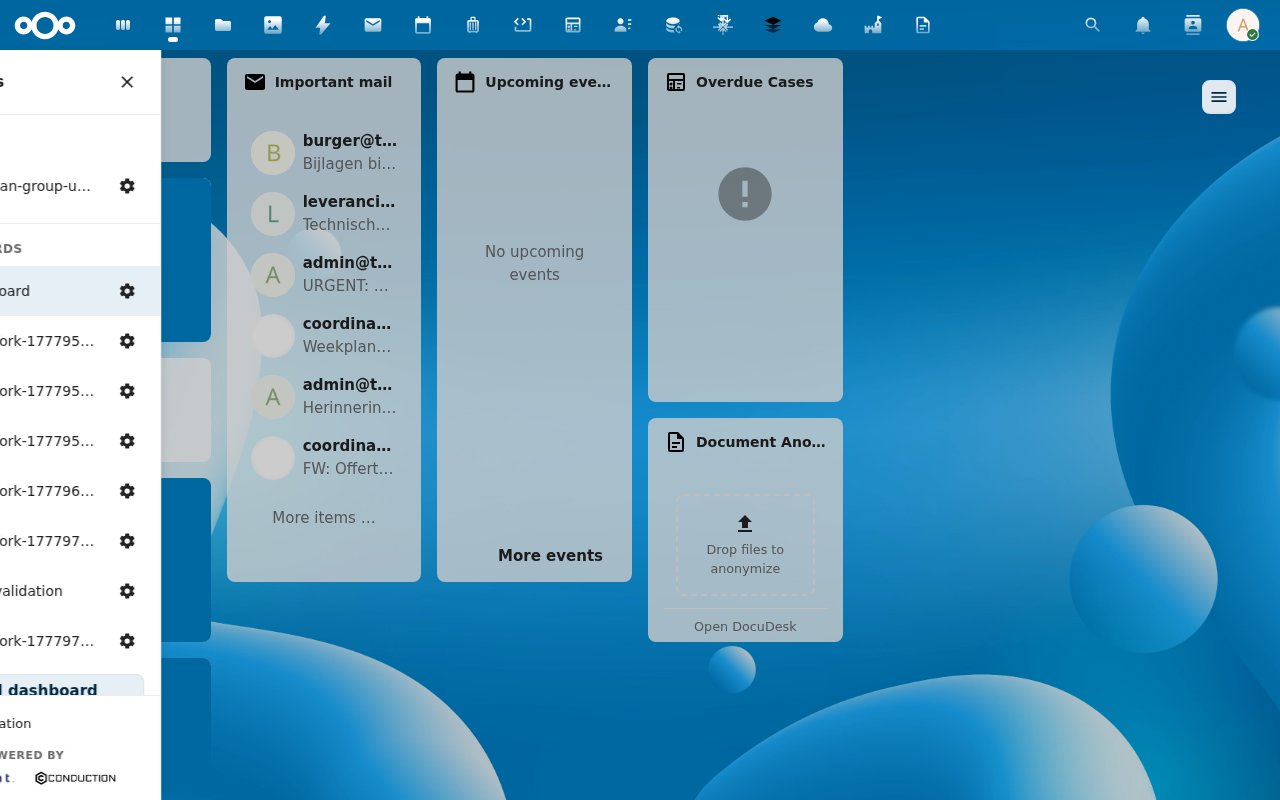
2. Click the row of the dashboard you want
The sidebar closes immediately (per REQ-SWITCH-002); the workspace re-renders with the selected dashboard's layout. The URL updates via history.pushState so back/forward navigates between dashboards (see Bookmark or share a dashboard URL).
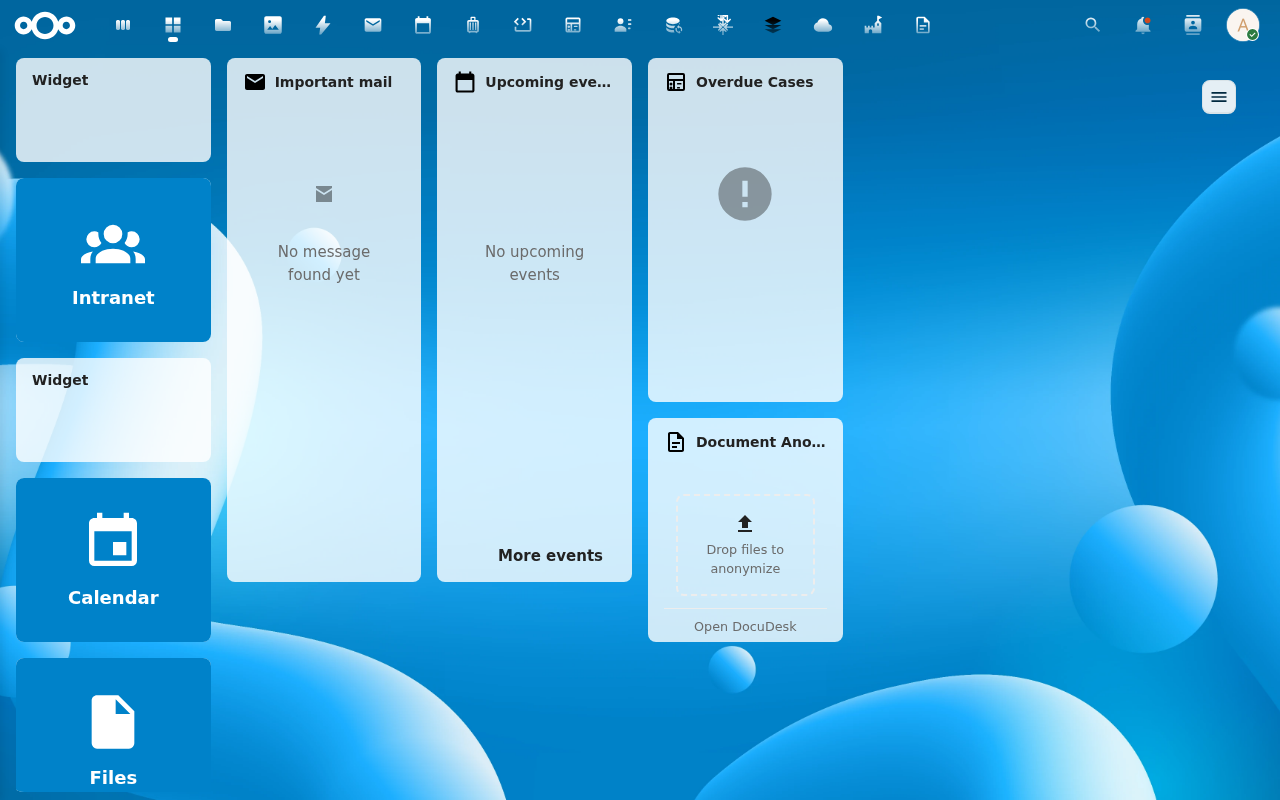
3. The active row is highlighted
When you reopen the sidebar later, the now-active dashboard's row carries the .active class (primary-colour highlight) so you can tell at a glance where you are.
Behaviour notes
- Edit mode resets on switch. If you were in edit mode on the previous dashboard, your unsaved changes were already auto-saved (per drop), but the new dashboard opens in view mode. Re-enter edit mode via the cog menu on the new active row.
- Sidebar auto-closes. This is intentional — keep the sidebar a transient overlay rather than a persistent navigation pane.
- Keyboard. With the sidebar open, Tab through rows; Enter or Space activates a row exactly like a click.
Common issues
| Symptom | Fix |
|---|---|
| Sidebar doesn't close after click | A dashboard switch failed (e.g. you no longer have access). Check the toast for the error. |
| Active highlight is on the wrong row | Reload the page once. The store reconciles activeDashboardId with the server's truth. |