Create an admin template dashboard
An admin template is a dashboard the admin authors and assigns to one or more groups. The first time a member of an assigned group opens MyDash, they get a personal copy of the template's layout. Their copy is independent — they can edit, add, and remove widgets without affecting the template or other users.
When to use this
- You want every member of a group to start with the same dashboard (KPIs, mandatory tools, brand tiles).
- You're rolling out MyDash for the first time and don't want users to face an empty grid.
- You manage a multi-tenant Nextcloud where each tenant gets a different starting layout.
Goal
Author a template, assign it to a group, and verify a member of that group lands on a fresh copy on first login.
Prerequisites
- You must be a Nextcloud admin.
- The target group exists in Nextcloud (
occ group:add my-groupif not).
Steps
1. Open MyDash admin settings
Avatar → Administration settings → MyDash.
2. Scroll to Admin templates
The section lists every existing template with name, assigned groups, and edit / delete actions.
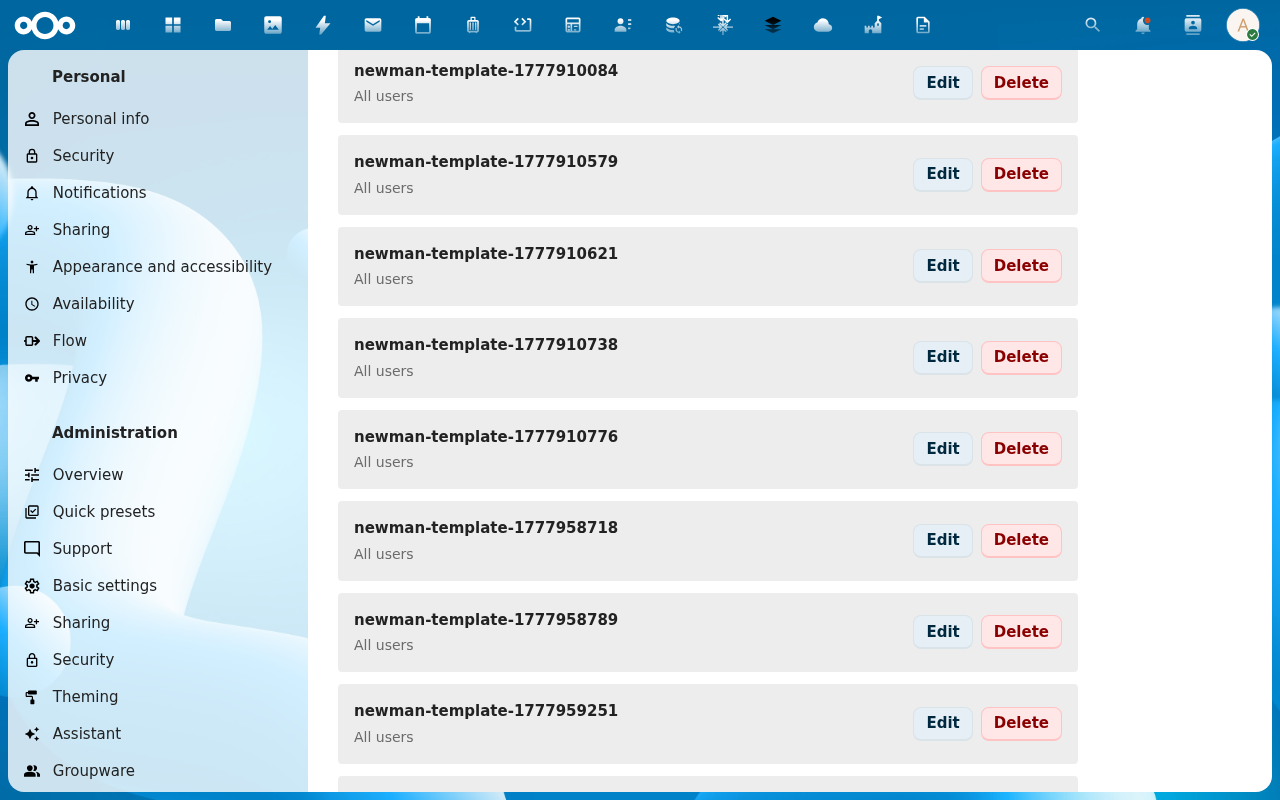
3. Click Create template
The template-create modal opens. Required fields:
- Name — internal label for admins. Not user-visible (the user sees a regular dashboard with whatever name you set there).
- Group order priority — comma-separated group ids in priority order. The resolver picks the first group in this list that the user belongs to.
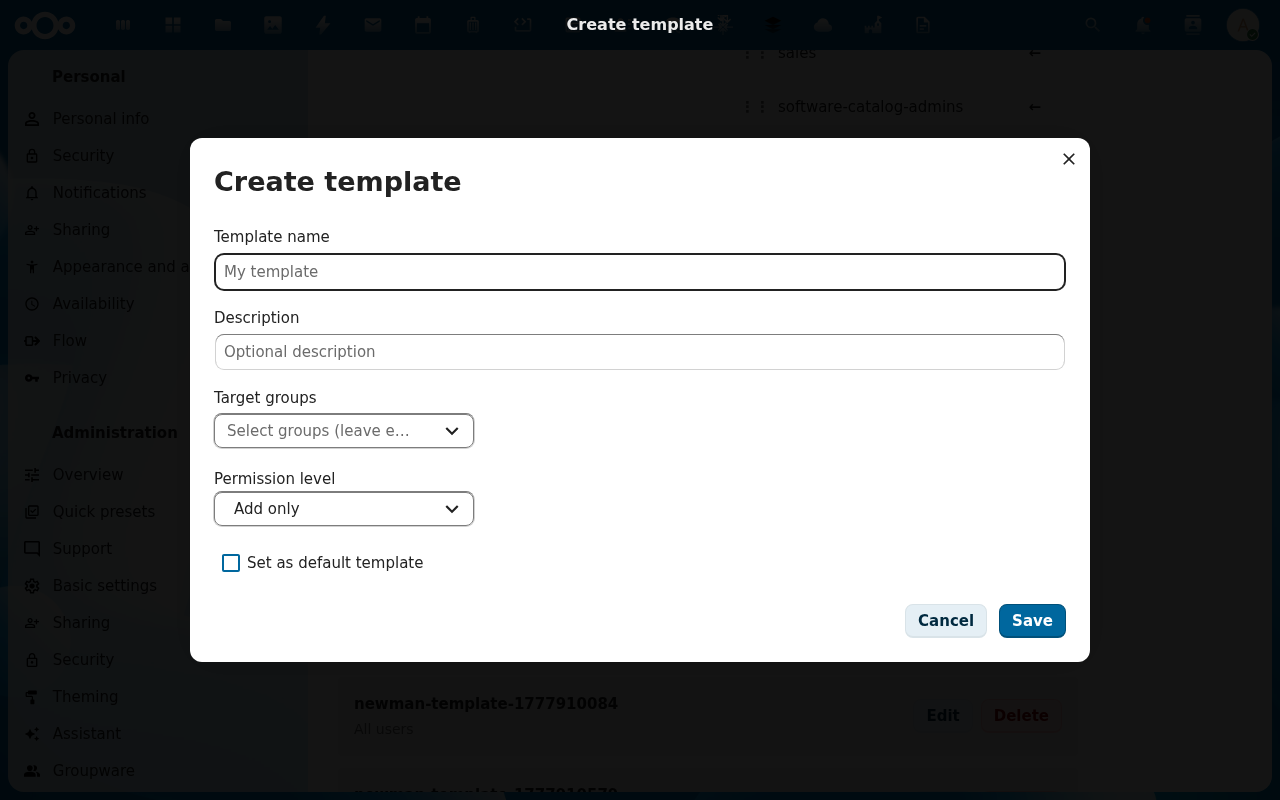
Optional fields:
- Compulsory widgets — list of widget IDs that users cannot remove from their copy. Useful for mandatory KPI cards.
- Lock layout — when on, users get
view_onlypermission on their copy (no drag/resize/add/remove). They still see all the data, just can't reshape it.
4. Save and edit the template's layout
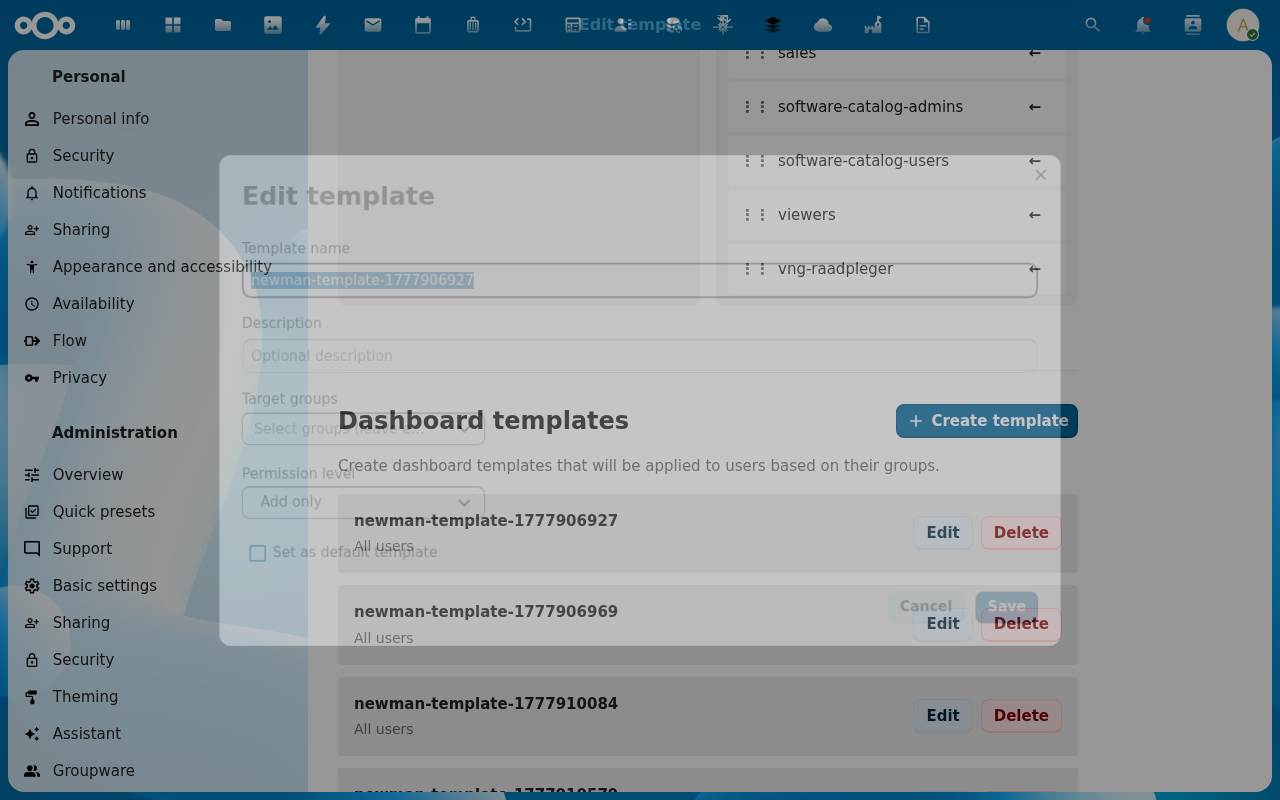
Saving creates the template row. Click Edit layout on the new template — MyDash opens a regular dashboard editor scoped to the template. Add widgets, position them, configure them — exactly like editing a personal dashboard.
5. Verify with a test user
occ user:add testuser (or pick an existing member of the assigned group). Log in as that user and open MyDash. The first visit clones the template into a personal dashboard named My Dashboard (default) — visible in MY DASHBOARDS in the sidebar.

Behaviour notes
- One-shot clone, not a live link. The user's copy diverges from the template the moment either side changes. Editing the template later doesn't push changes to existing copies — only new users get the latest.
- Compulsory widgets stay compulsory across the clone. They render with a small lock icon in the user's view; Remove is greyed out.
- Multiple groups → priority list wins. A user in groups
engineeringandmarketingwith priorities[engineering, marketing]gets the engineering template even if marketing's was created later. - No matching group → fallback resolver. Users who match no template land on the seven-step default-resolution chain: pin → group default → admin defaults → first available.
Common issues
| Symptom | Fix |
|---|---|
| Test user sees the empty state, not the template | The user isn't actually in the assigned group, or the group isn't in the priority list. Check occ user:info. |
| Template's compulsory widget shows up but user can remove it | Check the compulsory flag is set on that placement (isCompulsory=1 in oc_mydash_widget_placements). |
| Template edits aren't propagating | Expected. Templates are clone-on-first-login, not live. |